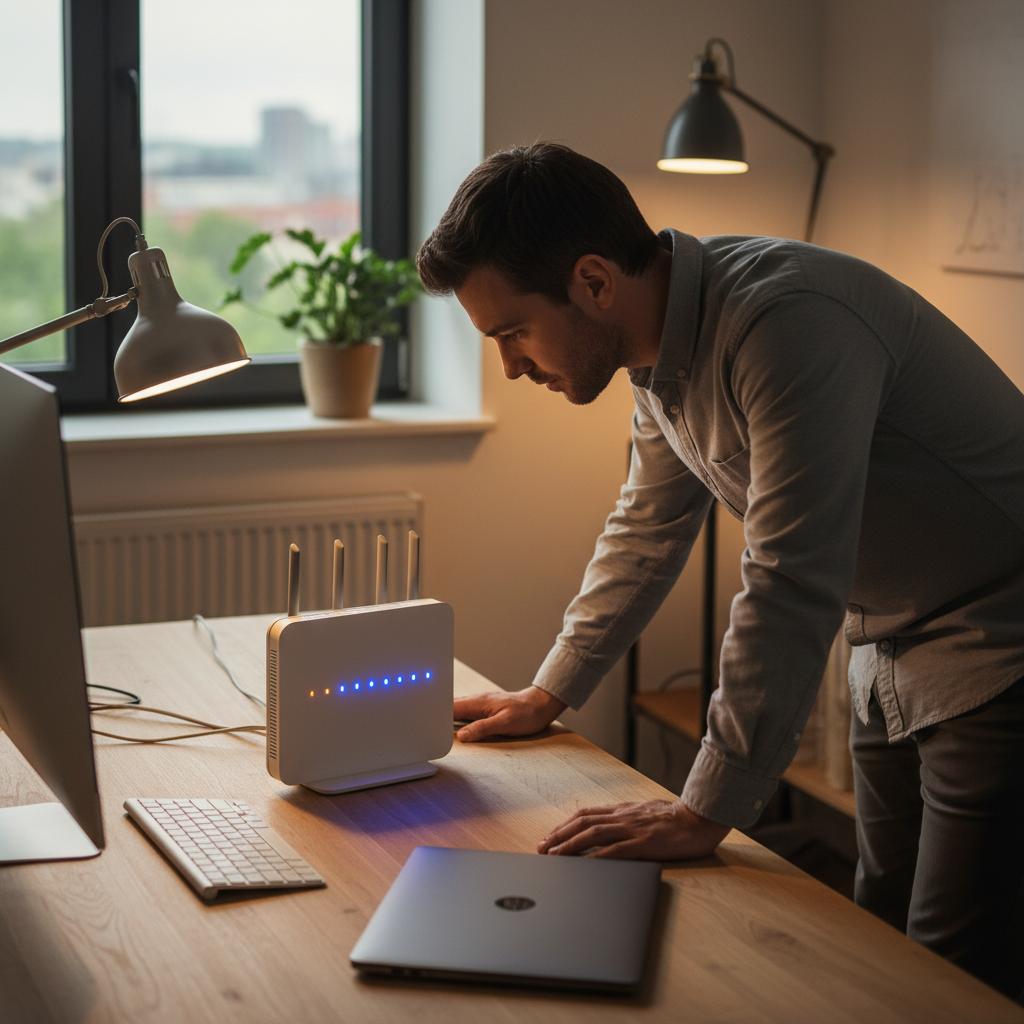
Step-by-Step Initial Hardware Connection
Learn how to connect your router, modem, and computer cables correctly without error.
Whenever you connect a laptop, phone, or smart TV to Wi-Fi, your router acts as a smart gateway director between your home network and the world. Here is how it works.
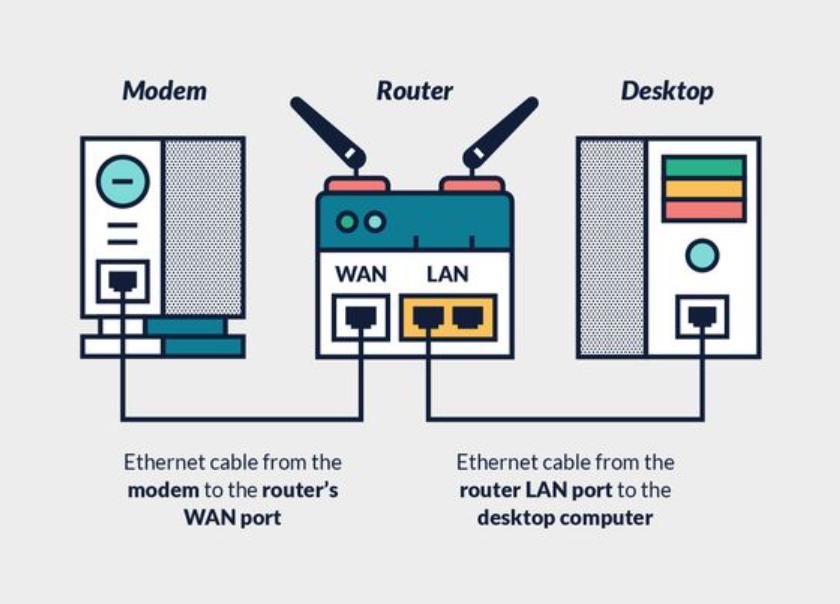
An Ethernet cable links your internet modem to the router's WAN port. The router powers on, detects the signal line, and prepares to distribute local network addresses.
Your router assigns unique private IP addresses to each connected device and sets up the Wi-Fi signal so everyone communicates without signal collisions.
Your wireless network broadcasts the SSID name. Once devices enter the security password, data flows smoothly for browsing, streaming, and work.
Your router is the front gate to your digital home. Setting it up properly ensures your Wi-Fi reaches every room at maximum speed, protects your personal data from nearby unauthorized users, and keeps smart home devices running reliably.
Most routers operate continuously without attention. However, you will want to access your settings when moving to a new home, upgrading your internet speed, changing your Wi-Fi password, or when devices show "Connected, no internet".
Learn how to wire your modem, router, and Ethernet ports correctly.
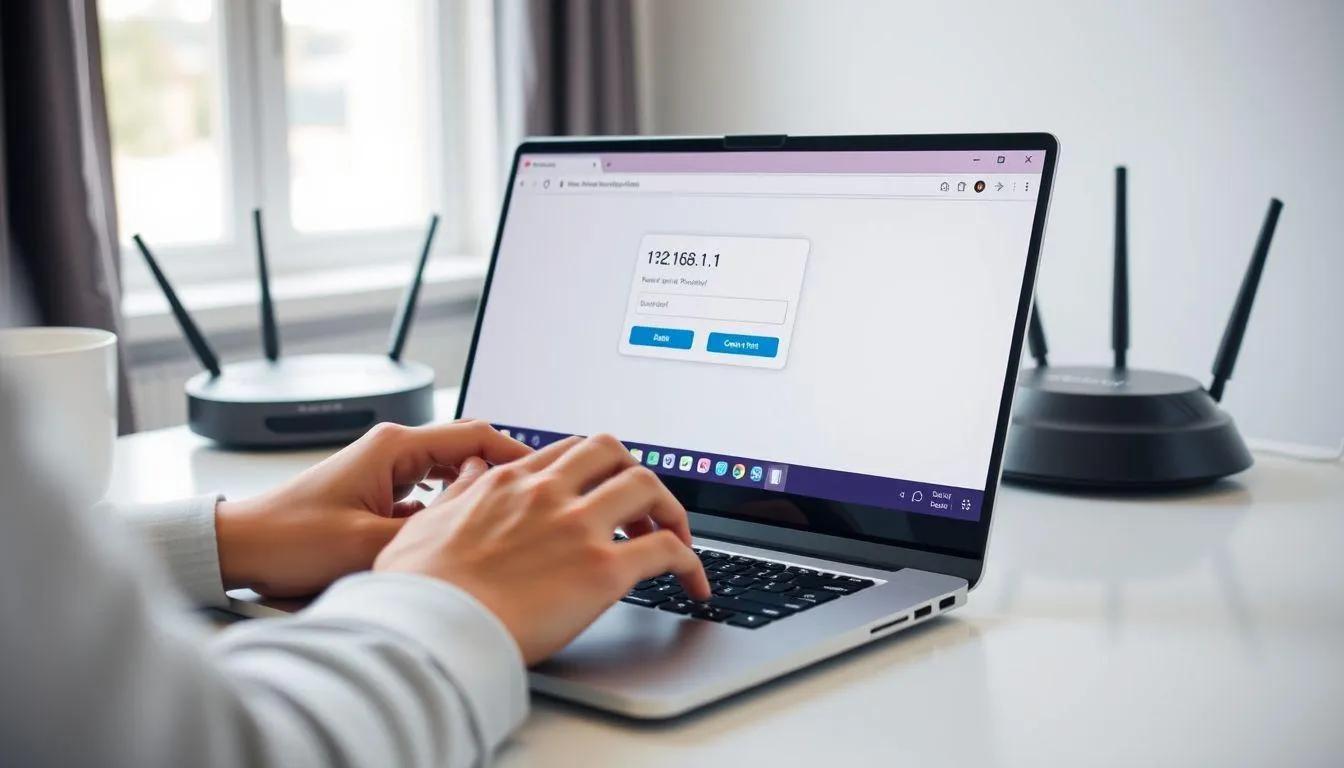
Find your gateway IP and log in to the setup dashboard.
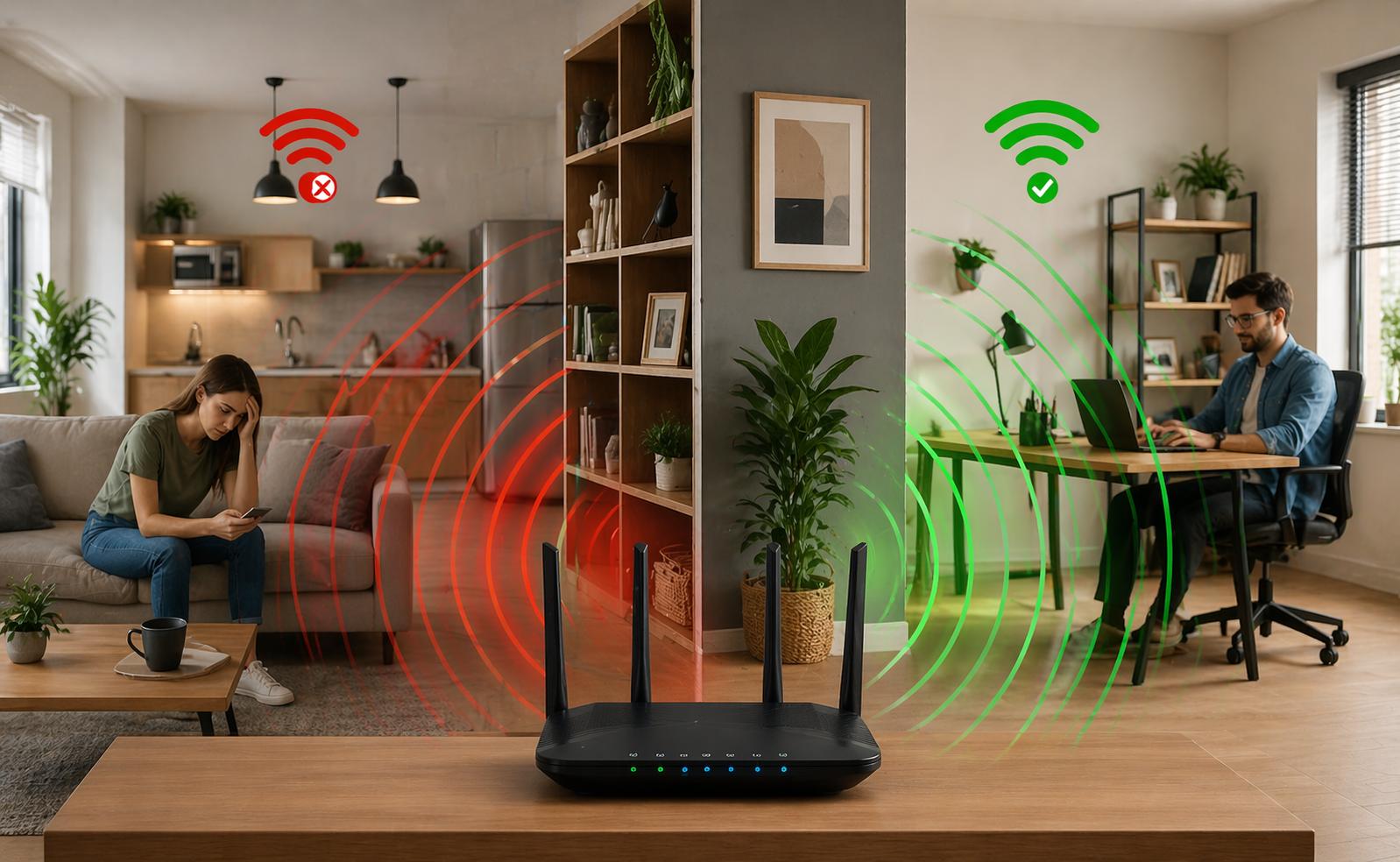
Optimize dual frequencies, clean channels, and router placement.
Step-by-step diagnostic order and physical reset steps.
Browse all educational articles regarding router setup, Wi-Fi passwords, and troubleshooting.
Choose from our verified step-by-step categories below and read the full educational manuals.
Setting up your hardware cables properly is the essential foundation of every stable network. Learn how Ethernet cables bridge the link between your wall line, broadband modem, and the router's WAN port. We explain the difference between WAN and LAN sockets, how to read indicator lights, and how to verify physical connections without getting confused by technical terms.
Every router has a local administration dashboard that you can open in any regular web browser without an active internet connection. Learn how to locate your default gateway IP address (such as 192.168.1.1 or 192.168.0.1), check the default credentials printed on the hardware sticker, and troubleshoot browser certificate or timeout notices.
Slow internet, buffering videos, and weak signal in certain rooms are usually caused by radio congestion or wall interference. Learn how the 2.4 GHz and 5 GHz frequency bands differ, how to choose non-overlapping Wi-Fi channels (1, 6, and 11), and how simple placement adjustments can dramatically boost whole-home coverage.
Most unexpected connection problems can be solved in a few minutes without calling an expensive technician. Follow our proven diagnostic sequence: performing a 30-second sequential power cycle, checking modem synchronization lights, clearing corrupted DNS caches, and executing a clean factory reset if passwords are lost.
Tested and structured networking manuals
Unbiased, independent knowledge base
Educational Guides
Router Guide shares easy reading manuals about Wi-Fi setup, admin logins, password security, speed improvements, and reset procedures. We explain device behavior simply, without technical pressure or complicated jargon.
Educational Disclaimer: We are an independent educational resource. All content is compiled for learning and awareness purposes only.
Learn what this website provides and how networking information should be understood.
Notice: This website is an educational reference portal. No phone numbers, paid troubleshooting services, or remote access logins are offered on these pages.
On Windows, open Command Prompt, type ipconfig, and look for the "Default Gateway" number (e.g. 192.168.1.1 or 192.168.0.1). On a phone or Mac, check your active Wi-Fi connection details under "Router" or "Gateway".
This message means your phone or PC has successfully connected to the router wirelessly, but the router is not receiving an active internet feed from the modem. Check that the Ethernet cable between the modem and the router's WAN port is firmly clicked in.
The 2.4 GHz band provides longer range and easily passes through walls, but has lower maximum speed. The 5 GHz band provides significantly faster data speeds and lower lag, but has a shorter broadcast distance.
Locate the tiny RESET pinhole on the back of the router. With the power on, press and hold the button inside using a paperclip for 10 to 15 seconds until the LEDs flash, then release. The router will restart with default factory settings.
Explore simple learning articles about router hardware cabling, admin logins, Wi-Fi passwords, speed fixes, and reset steps.
See All GuidesLearn how to connect your router, modem, and computer cables correctly without error.
Instructions to find your local gateway IP, log in using default sticker credentials, and resolve gateway errors.
Maximize speed and broadcast range by configuring dual frequency bands and choosing clean radio channels.
Quick solutions for internet signal drops, gateway interface errors, and physical factory reset guidance.